



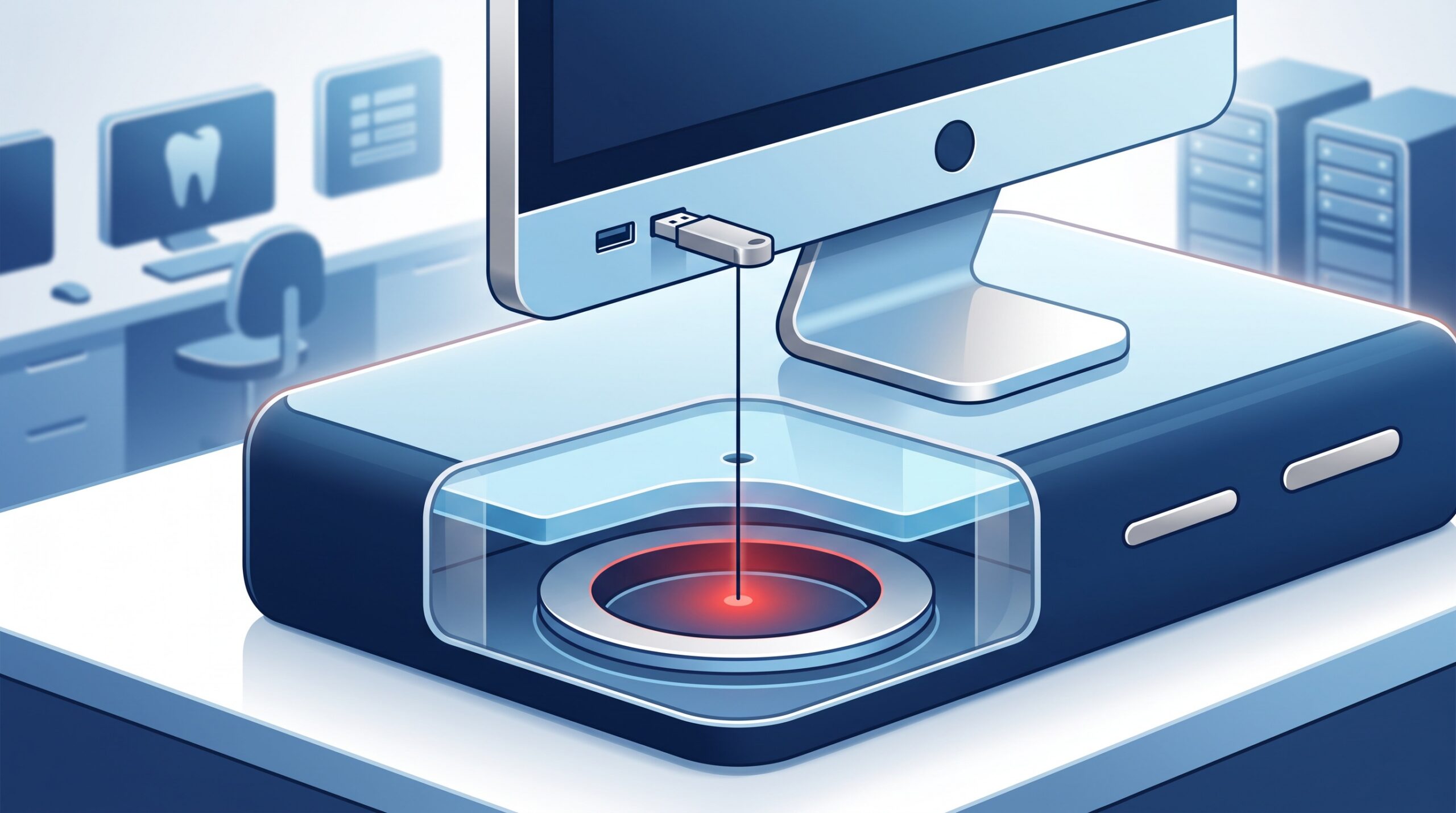
August 13, 2026 Plug and Pwn: How a Fake USB Device Can Seize a Dental Practice Computer in Minutes
You have plugged in a thousand USB devices without a second thought – a phone to charge, a patient’s memory stick with an outside X-ray, a new intraoral camera, a wireless mouse. Windows recognizes the device, quietly sets it up, and you get back to work. That everyday convenience is exactly what a new attack, disclosed this week, turns into a weapon.
Security researchers Alejandro Hernando and Borja Martinez presented “Plug and Pwn” at DEF CON 34, and it was detailed by BleepingComputer on August 12, 2026. The technique abuses Windows Plug and Play – the feature that makes hardware “just work” – to make Windows install a vulnerable driver and hand an attacker SYSTEM privileges, the highest level of control a Windows computer has. The most unsettling part: some versions of the attack need no clicks, no logged-in user, and work on a fully patched Windows 11 machine in about five minutes.
How a plug becomes total control
When you connect a new device, Windows identifies it by a hardware ID, finds a matching driver package, and installs it. For a lot of hardware, that package is a signed vendor bundle – and Windows runs its installer, services, and helper programs as NT AUTHORITY\SYSTEM, with no User Account Control prompt. The operating system trusts the package because it is signed; it does not scrutinize whether that trusted package contains an exploitable weakness.

The researchers used USB-emulation hardware to make a computer believe a specific device had been plugged in. Windows dutifully fetched and installed that device’s vendor driver package – and then they abused a vulnerable component inside it to climb to SYSTEM. In one demonstration they impersonated one manufacturer’s hardware to quietly change the machine’s DNS settings, then a second manufacturer’s to pull down files over an unencrypted connection. The point is not any single vendor’s bug; it is that the automatic install path itself hands trusted, SYSTEM-level execution to whatever device shows up.
This is not entirely new territory. Back in 2021, plugging in a Razer mouse could make a standard user an administrator, because Windows auto-launched the mouse’s installer as SYSTEM. Plug and Pwn generalizes that idea from one vendor’s installer to the device-installation machinery every Windows PC uses.
You do not even need to touch the computer
Here is the detail that should make any practice using remote desktop sit up. One of the demonstrated chains runs entirely over RDP, with no physical hardware at all. If a remote-desktop session has USB device redirection enabled, an attacker can make a phantom device appear to the server, triggering the same automatic driver install – and the same escalation to SYSTEM – from across a network.

In other words, this is both a physical-access attack and, in the right conditions, a remote one. That combination is what makes it a class of problem rather than a one-off bug.
Why patching and standard user accounts are not enough here
Two of our usual, reliable defenses do not fully close this door, and it is important to understand why.
Patching Windows does not remove it. The researchers ran their attack against a fully updated Windows 11 machine. The behavior being abused – Windows automatically installing signed vendor drivers as SYSTEM – is a feature, not a single flaw to be patched. Individual vulnerable vendor packages get fixed over time, but the install path remains.
Running staff as standard users does not stop it either. Normally, denying local-administrator rights is one of the best moves a practice can make – it is a core defense we recommend against nearly every kind of malware, and it was central to why a job-offer lure needed a separate zero-day to escalate from an ordinary user to SYSTEM. But Plug and Pwn does its escalation through the driver installer, which Windows runs as SYSTEM no matter who is logged in – or whether anyone is logged in at all. Least privilege still matters enormously for everything else; it just is not the whole answer to this particular trick.
Why a dental practice is a realistic target
Lazarus-grade nation-state tools are not what a small practice needs to fear. The realistic threat is far more mundane: physical exposure. Think about where your computers actually live. A front-desk PC faces the waiting room. Operatory workstations sit in rooms where patients are, at times, briefly alone. USB ports are open and inviting. Staff plug in phones, cameras, and patients’ own USB sticks full of outside imaging.

A booby-trapped “charging cable,” a rigged USB stick left behind, or a malicious device slipped into a port during a thirty-second gap is all this attack needs. And once a machine is at SYSTEM, the attacker effectively owns it – which on a practice computer means the practice-management database, imaging files, saved passwords, patient records, and possibly the route to your backups. It is the same escalation logic we walked through when a single ordinary login proved enough to take over an entire Windows network: get control of one machine at a deep enough level, and the rest can follow.
What to do now
The good news is that the countermeasures are concrete, and most are things a practice’s IT support can configure once.

Control physical access to USB ports. This is the front line. Position front-desk and operatory computers so ports are not reachable by patients, use port blockers or lockable cases where practical, and set a firm policy that unknown USB devices and cables never go into a practice machine. Patient media with outside X-rays should be handled on a designated, isolated computer.
Disable driver co-installers. Setting the DisableCoInstallers value in the Windows registry (under HKLM\SOFTWARE\Microsoft\Windows\CurrentVersion\Device Installer) prevents driver packages from running co-installer components during device setup. It disrupts several of the demonstrated chains – though the researchers are clear it does not eliminate the entire attack surface, so treat it as one layer, not a cure.
Restrict which devices can install at all. Windows Group Policy can limit device installation to an approved list of hardware IDs and block everything else. For practice computers that only ever need a known set of peripherals, an allow-list is a powerful, appropriate control.
Turn off USB redirection on remote sessions that do not need it. If you use RDP to reach a practice-management server, disable Plug and Play device redirection (the fDisablePNPRedir setting) on hosts that have no reason to accept redirected devices. This closes the no-hardware-needed remote variant.
Deploy and monitor endpoint protection. Modern endpoint detection and response can flag the unusual driver installs and behavior an attack like this produces – but only if it is current and someone actually watches the alerts.
Keep machines updated and segmented anyway. Prompt patching still retires the specific vulnerable vendor packages, and network segmentation with tested, offline backups is what decides whether a single compromised operatory PC stays contained or becomes a practice-wide incident – the same containment logic behind keeping every front-desk machine on a supported, patchable operating system.
The takeaway
Plug and Pwn is a reminder that not every threat arrives by email. Sometimes it is a device slipped into an open port, exploiting the very convenience that makes Windows pleasant to use. The defenses are unglamorous but effective: guard your ports, tell Windows to be pickier about what it installs, lock down remote redirection, and watch your endpoints.
Compudent Systems helps dental practices across the GTA and Ontario put these controls in place – configuring device installation restrictions and USB policy, hardening remote-desktop access to practice-management servers, deploying and monitoring endpoint protection, and segmenting networks so one compromised workstation cannot reach your patient records. If you are not certain what would happen if an unknown USB device were plugged into your front-desk PC, contact Compudent Systems for a device-control and endpoint review. The easiest attacks are often the ones that just walk in the door and plug in.
Sources & further reading:
- Plug and Pwn attack uses fake USB devices for Windows SYSTEM access – BleepingComputer
- Researchers Turn USB Auto-Install Into a Full SYSTEM Takeover on Windows 11 – The Hacker News
- Plug and Pwn – research site
Related Reading
- A Fake Job Offer, a Windows Kernel Rootkit: The Lazarus Zero-Day (CVE-2026-68820) and What It Means for Your Dental Practice
- The Other Computers in Your Operatory: Why Connected Dental Devices Are the Attack Surface Nobody Audits
- 974 Patches, Two Being Exploited Right Now: How a Dental Practice Should Read September’s Patch Tuesday