




October 5, 2026 When Your Domain Controller Won’t Boot: KB5122876, the Server 2019 BSOD, and What Dental Practices Should Do
In the last week of September 2026, a familiar kind of story started spreading through the forums where system administrators compare notes: install Microsoft’s latest Windows Server updates, reboot, and watch the server die. On Reddit’s r/sysadmin and Microsoft’s own community forums, administrators reported the same thing with unsettling consistency — every Windows Server 2019 domain controller in their environment fails to boot after the August and September 2026 cumulative updates, including the September rollup KB5122876. One admin called the behaviour “100% reproducible” across both writable domain controllers and read-only ones.
For a large enterprise with a dozen domain controllers, that is a bad week. For a dental practice running a single server in a closet behind the front desk, it is the whole office going dark. If that server is your practice’s domain controller, this is a story worth understanding before Windows Update decides the timing for you.
The symptom: the server installs the update, then never comes back
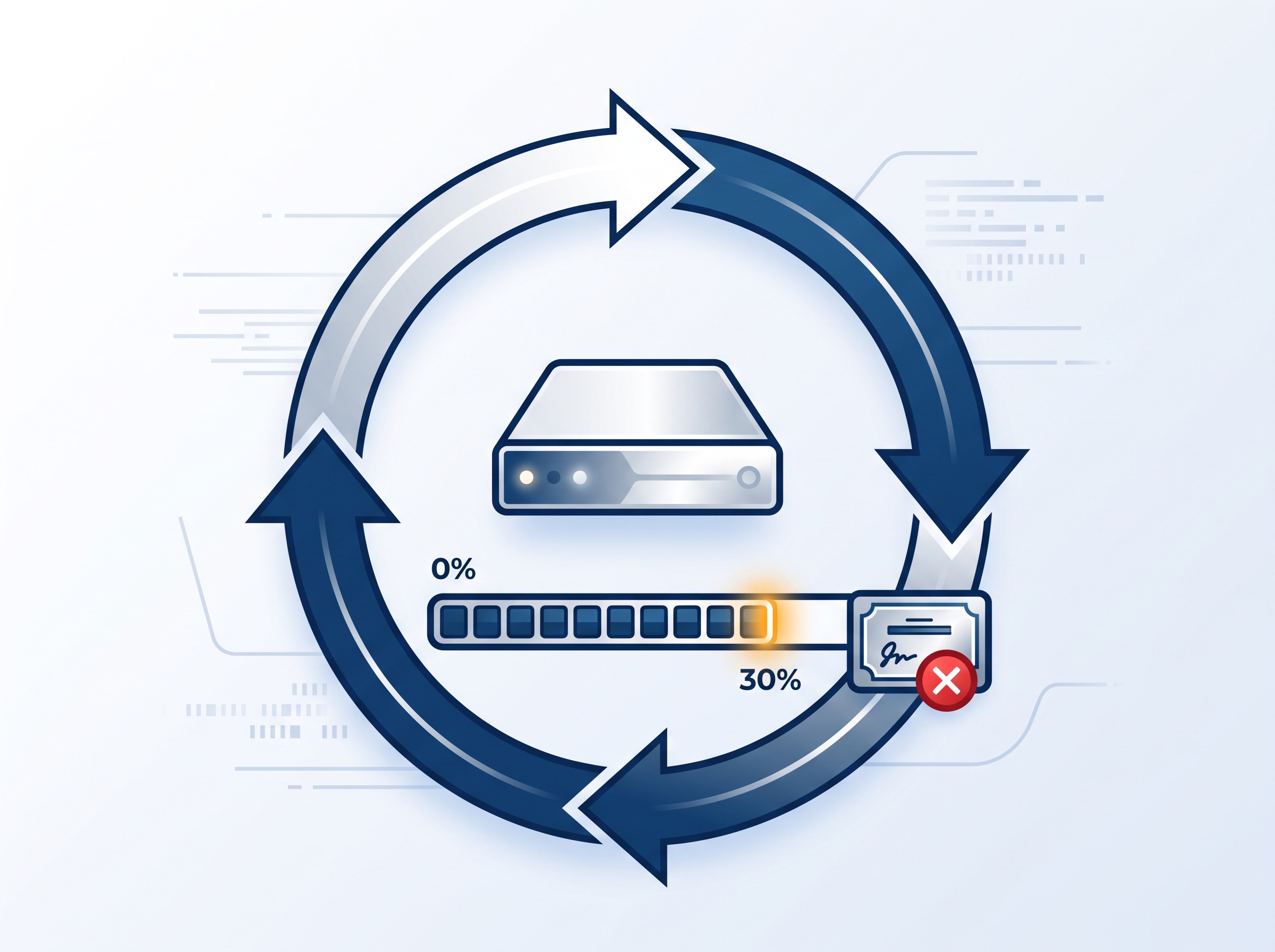
The pattern administrators describe is specific. The update installs successfully. The server reboots to finish applying it, reaches roughly 30 percent, restarts again — and then crashes during start-up with a CRITICAL_SERVICE_FAILED blue screen. From there the machine enters a boot loop and never finishes starting. What makes it stranger is how selective it is: in the reported environments, every Server 2019 machine acting as a domain controller failed, while ordinary member servers on the exact same build took the same updates without a hiccup. Something about the domain-controller role is the trigger.
The updates named in these reports are the August 2026 cumulative update (KB5120238) and the September 2026 cumulative update (KB5122876), along with their companion .NET Framework updates. KB5122876 is the September 8, 2026 security rollup for Windows Server 2019 and Windows 10 version 1809 — the kind of patch most practices install automatically, exactly as they should for security, which is what makes a boot-breaking regression so painful.
What the crash actually is
The administrators who dug into the crash dumps landed on a consistent answer. The bugcheck is 0x0000005A (CRITICAL_SERVICE_FAILED), and a key parameter resolves to status code 0xC0000428 — which Windows spells out as “Windows cannot verify the digital signature for this file.” The crash happens deep in start-up, while Windows is loading its drivers. In plain terms: during boot the server tries to load a driver, decides it cannot trust that driver’s signature, and because the failure happens at a critical early stage, the only thing it can do is stop.
The working theory from the field is a boot-time driver signature validation problem introduced by the cumulative update chain that, for reasons not yet pinned down publicly, only bites on Server 2019 domain controllers. As of those reports it was being actively investigated rather than formally resolved — which is the honest status of a great deal of patch trouble in its first days. You do not need to understand the kernel internals to act on it; you need to know the symptom, the recovery, and how to avoid walking into it.
Why a dead domain controller is a whole-practice emergency
In most small and mid-sized dental practices, the “server” is not just file storage. It is the domain controller — the machine that handles staff logins, hands out network addresses through DHCP, and answers name lookups through DNS. When it is healthy, nobody thinks about it. When it will not boot, the symptoms cascade: staff cannot log in, workstations lose their network settings, the practice-management software cannot reach its database, and imaging stations lose the share they save to. The front desk is not slow — it is stopped.
That is why this particular bug deserves more attention than its obscure bugcheck code suggests. A flaw that merely slows things down is an annoyance. A flaw that keeps the one central server from starting is a same-day closure unless you are prepared. If you have ever thought through what your office does when the computers are down, this is precisely the scenario those plans exist for — the kind we walked through in building a downtime and business-continuity plan for a dental practice.

If your domain controller is already in a boot loop
If this has already happened to you, do not keep forcing reboots and hoping — a domain controller stuck at CRITICAL_SERVICE_FAILED will not fix itself, and repeated hard power-offs risk corrupting the Active Directory database. The recovery that administrators report actually works is to boot the server into the Windows Recovery Environment (WinRE) and reverse the half-applied update:
- Get into recovery. Interrupt the boot a few times to trigger WinRE, or boot from Windows Server installation media and choose Repair your computer, then open a command prompt.
- Revert the pending update. The command that resolved it in the field is
dism /image:C:\ /cleanup-image /revertpendingactions(adjust the drive letter if your Windows volume is not C: inside recovery). This rolls back the update that was mid-installation. - Reboot. After reverting, the server starts normally on the previous, working state.
- Then pause, do not re-apply. Once you are back up, keep that specific update from reinstalling until there is a confirmed fix — and check Microsoft’s Windows release health dashboard, because Microsoft issued out-of-band fixes for other September 2026 Server update problems, and a formal resolution for this one may follow the same path.
If your only domain controller is down and you are not comfortable working inside the recovery environment on the server that holds your entire directory, this is the moment to call your IT support rather than experiment. The cost of a mistake on a lone domain controller is high.

How to keep it from happening in the first place
The uncomfortable truth is that “install security updates promptly” and “never let a bad patch take you down” are in tension, and the answer is not to stop patching — unpatched servers are how practices get breached. The answer is a little discipline around how you patch the one server you cannot live without:
- Do not let the critical server auto-install on day one. Give cumulative updates a short soak — even a few days — so that widely-reported regressions like this one surface before they reach your production domain controller.
- Keep a tested backup and know your DSRM password. A recent, verified backup of the domain controller, plus the Directory Services Restore Mode password, is your safety net if a rollback is not enough.
- Avoid single points of failure where you can. A second domain controller — even a modest virtual one — means a bad patch on one does not take the whole practice offline.
- Watch the patch-trouble pattern, not just one bulletin. This is the third September 2026 Windows Server update to cause real-world outages, after the one that broke Remote Desktop and locked staff out of the front desk and the one that broke Always On VPN for remote access. A rough patch month is itself a signal to slow down and verify before deploying.
None of this means fearing updates. It means treating the server that runs your practice with a bit more care than the laptop at the front desk — because when it falls over, everything does.

How Compudent Systems can help
At Compudent Systems, we manage Windows Server environments for dental practices across the GTA and Ontario — which means we watch the patch-trouble reports so you do not have to. We stage and test updates before they reach your domain controller, keep verified backups and your DSRM recovery details on hand, and can add a second domain controller so a single bad patch never closes your office. And if your server is blue-screening right now, we can get you recovered. Contact Compudent Systems for proactive server patch management and a resilience review, and turn the next bad update from an emergency into a non-event.
Sources & further reading:
- Server 2019 Domain Controllers BSOD After August/September 2026 CUs (KB5120238 / KB5122876) — Microsoft Community Hub
- Windows Server 2019 Domain Controllers BSOD After August/September 2026 Cumulative Updates — r/sysadmin
- September 8, 2026 — KB5122876 (OS Build 17763.9245) — Microsoft Support
Related Reading
- When Your Domain Controller Won’t Boot: KB5122876, the Server 2019 BSOD, and What Dental Practices Should Do
- October 2026 Patch Tuesday: Microsoft Fixes a Record 1,400+ Flaws and an Exploited Windows Zero-Day — What Dental Practices Must Patch Now
- The Patch That Locks Out the Front Desk: September’s Windows Server Update Is Breaking Remote Desktop