




February 12, 2026 10 Essential Microsoft 365 Security Settings Every Dental Office Should Configure in 2026
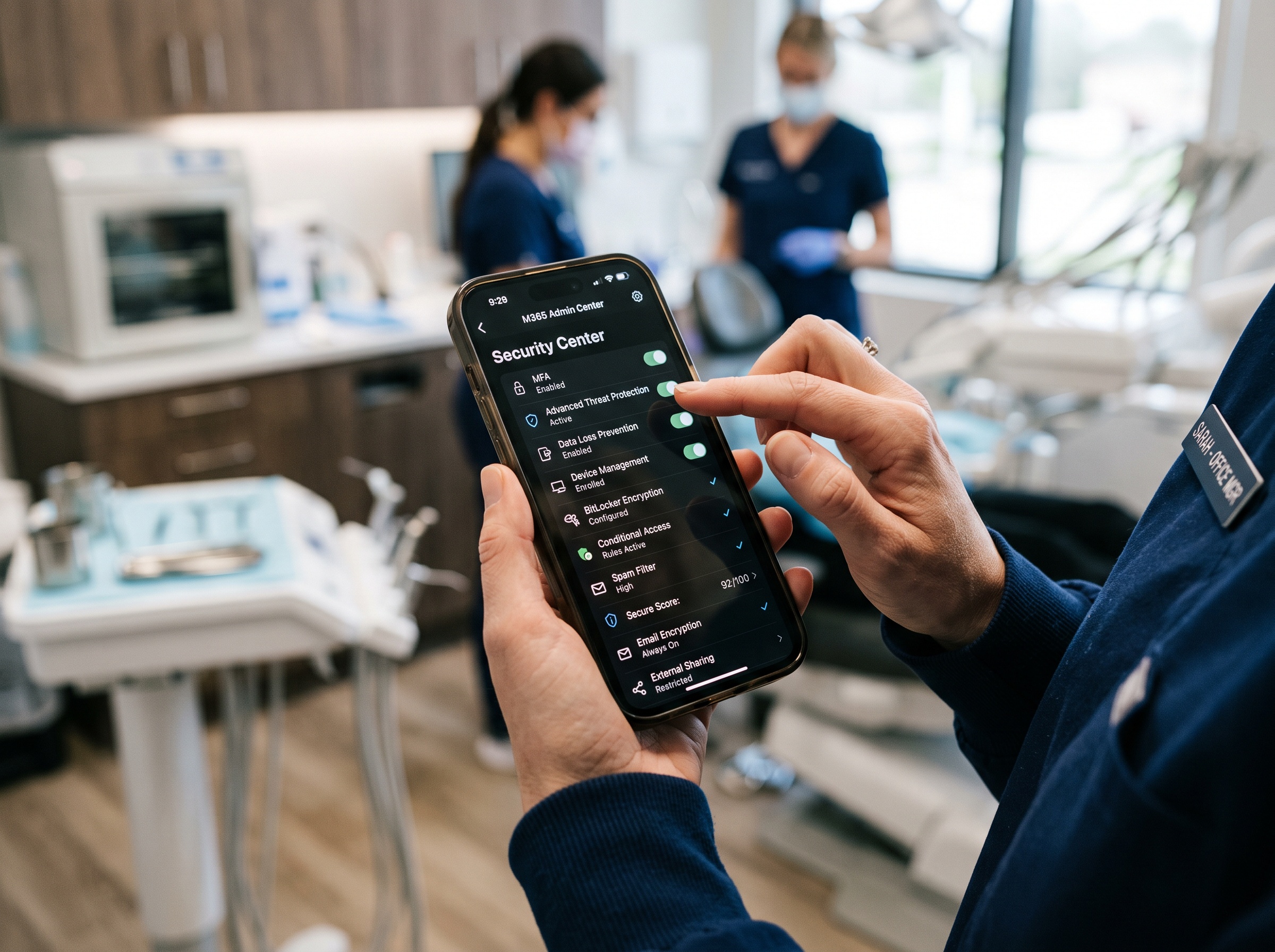
Microsoft 365 is the backbone of most dental office operations — from email and scheduling to document storage and team communication. But according to a recent analysis, only 40% of organizations have properly configured the critical security protections available in their existing Microsoft 365 subscriptions. For dental practices handling sensitive patient data under HIPAA, that’s a risk you can’t afford to take.
Microsoft introduced over 20 new security controls in 2026, and many of them are available even in the Business Basic and Standard tiers that most dental offices use. Here’s your priority checklist for locking down your Microsoft 365 environment.

1. Enable Security Defaults or Conditional Access
Security Defaults is Microsoft’s free baseline protection that enforces multi-factor authentication (MFA) for all users. If you haven’t enabled this, stop reading and do it now — it blocks 99.9% of account compromise attacks. Dental offices on Business Premium can go further with Conditional Access policies that restrict logins based on location, device compliance, and risk level.
2. Configure Multi-Factor Authentication for Every Account
Every user in your dental practice — from the front desk to the dentist — should have MFA enabled. Use the Microsoft Authenticator app rather than SMS-based verification, as SIM-swapping attacks can bypass text message codes. This is the single most effective security measure you can implement.
3. Block Legacy Authentication Protocols
Older email protocols like POP3, IMAP, and SMTP don’t support MFA, creating a backdoor into your environment. Microsoft has been phasing these out, but many dental offices still have them enabled for compatibility with older devices. Check your sign-in logs and disable legacy auth if it’s not actively needed.
4. Set Up Data Loss Prevention (DLP) Policies
DLP policies can automatically detect and protect sensitive information like Social Security numbers, patient IDs, and health records shared via email or Teams. Microsoft 365 Business Premium and higher tiers include built-in HIPAA templates that make configuration straightforward.
5. Enable Audit Logging and Alert Policies
Turn on unified audit logging in the Microsoft Purview compliance portal. Set up alert policies for suspicious activities like mass file downloads, unusual login locations, or mailbox forwarding rules. HIPAA requires you to track access to patient information — audit logs are your proof of compliance.
6. Configure Email Authentication (SPF, DKIM, DMARC)
These three email authentication protocols prevent attackers from spoofing your dental practice’s email domain. Without them, cybercriminals can send emails that appear to come from your office, potentially tricking patients or business partners. Your IT provider can set these up in your DNS records in under an hour.
7. Restrict External Sharing in SharePoint and OneDrive
By default, Microsoft 365 allows users to share files with anyone outside your organization. For a dental practice, this means a staff member could accidentally share patient records with an external email address. Restrict external sharing to authenticated guests only, and enable expiration dates on shared links.
8. Deploy Microsoft Defender for Office 365
If you’re on Business Premium, you already have Microsoft Defender for Office 365, which provides advanced anti-phishing protection, safe attachments, and safe links. Make sure Safe Attachments is set to “Dynamic Delivery” so emails arrive immediately while attachments are scanned, and Safe Links is enabled to check URLs at the time of click.
9. Implement Device Management with Intune
With dental staff increasingly using personal devices to check email or access practice management systems, mobile device management is essential. Microsoft Intune (included in Business Premium) lets you enforce device encryption, require PINs, and remotely wipe practice data from lost or stolen devices without touching personal data.
10. Review and Restrict Admin Accounts
Limit Global Administrator access to no more than two accounts, and use dedicated admin accounts that aren’t used for daily email. Enable Privileged Identity Management (PIM) if available to require just-in-time activation for admin roles. An attacker who compromises an admin account has the keys to your entire practice.

The New Baseline Security Mode
In 2026, Microsoft introduced Baseline Security Mode — a new feature that automatically enforces a curated set of security configurations across your tenant. For dental offices without dedicated IT staff, this is a game-changer. It essentially automates many of the settings described above, reducing the risk of misconfiguration.
Microsoft 365 Copilot and Security
As dental offices begin adopting Microsoft 365 Copilot for AI-assisted tasks like drafting patient communications or summarizing records, security becomes even more critical. Copilot respects existing permission boundaries — if your file sharing and access controls are sloppy, Copilot could surface sensitive information to the wrong people. Getting your security house in order now is essential before rolling out AI tools.
Take Action This Week
You don’t need to implement everything at once. Start with the top three: Security Defaults, MFA for all users, and blocking legacy authentication. These three changes alone will dramatically reduce your attack surface. Then work through the remaining items over the next few weeks.
If you’re managing Microsoft 365 without an IT provider, consider Microsoft’s own Cyber Essentials guide, which maps every security control to specific M365 settings. Your dental practice’s data — and your patients’ trust — depends on getting these fundamentals right.
Related Reading
- Microsoft 365 Security Updates: Critical Changes Every Dental Office Must Know
- Critical Microsoft SharePoint Zero-Day CVE-2026-32201: Emergency Security Alert for Dental Practices Using Microsoft 365
- February 2026 Patch Tuesday: Microsoft Fixes 6 Actively Exploited Zero-Day Vulnerabilities — What Dental Practices Need to Do Now